Bluetooth Multipoint Explained for a Phone-and-Laptop Day
Our buying advice is based on published specifications and documented features. The shop links below go to official stores and currently contain no affiliate tracking. Read our disclosure.
Gear to consider
Start with your use case. Check the store for the current price, compatibility, and availability.
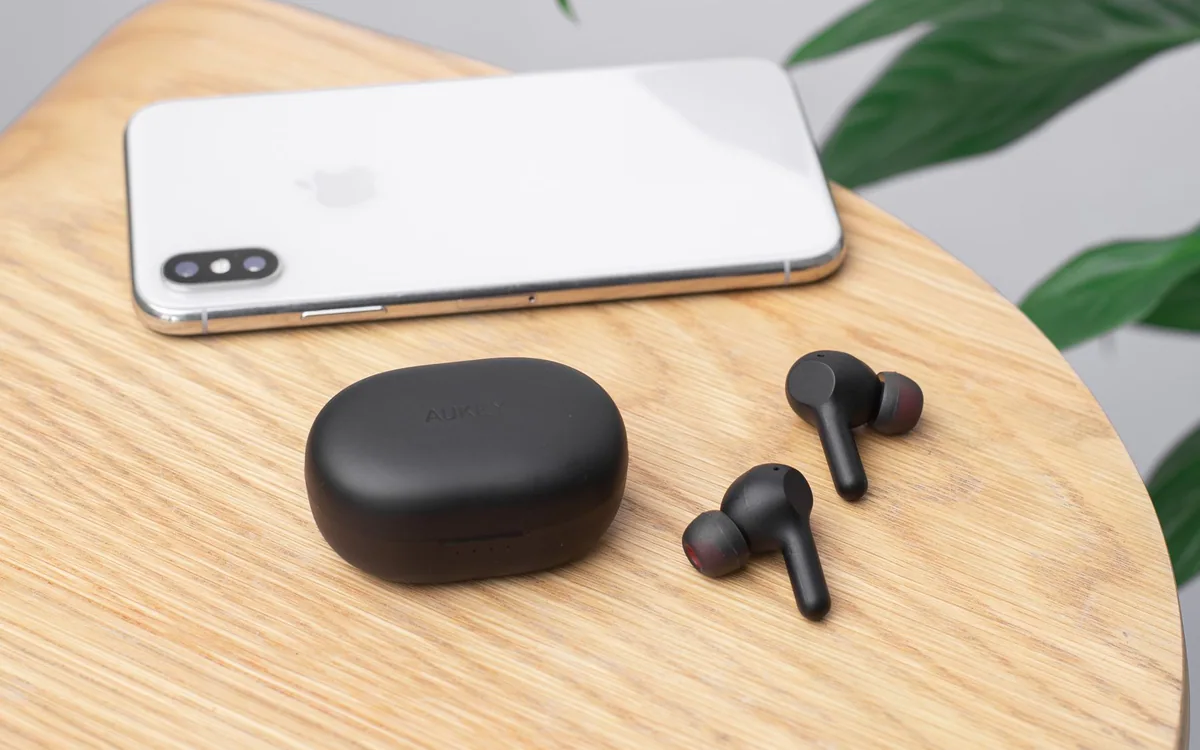
You finish a laptop call and want to play a podcast on your phone. Later, the phone rings while a video is open on the computer. Bluetooth multipoint aims to reduce the repeated disconnect-and-reconnect routine, but the name can make the feature sound more powerful or more automatic than a particular setup actually is.
Sony WH-1000XM5 is the documented example here because its official help guide explains connecting two devices. The steps below describe a careful setup approach, not a universal button sequence for every headset. We have not tested every operating system or meeting app, and the behavior of your exact combination needs its own check.
Understand what two connections buy you
A headset can remember several devices without keeping them connected simultaneously. Multipoint adds the ability to maintain the supported concurrent connections so you can move between sources with less manual reconnection. For the Sony example, the guide covers two devices. Remembered pairing history and currently active connections are different things.
Do not interpret multipoint as a small audio mixer. If you want a game from one machine and a conversation from another at the same time, verify a product that explicitly supports that mixing workflow. Shopping for a generic multipoint label alone is unlikely to answer that requirement clearly.
Pair in a controlled order
Charge the headset, consult the model instructions, and update supported software when appropriate. Begin with one source and confirm ordinary playback before adding the second. That gives you a known working connection rather than several changing variables. Use the exact product name in Bluetooth settings when the manufacturer distinguishes between entries.
Then follow the manufacturer steps to enable the two-device feature, which may involve a companion app. Sony documents an app setting for WH-1000XM5 multipoint. App labels can change with updates, so use the current help instructions rather than assuming an old screenshot will match your phone perfectly.
Make call routing explicit
Open the laptop calling application and select the desired microphone and speaker. System-level connection does not establish what an individual application is using. Make a short call with permission from the other participant, or use the application’s own test function if available, before relying on the arrangement for an important meeting.
Next, check the phone in a normal low-stakes situation. Notice what happens to the laptop playback when the phone takes a call, and what resumes afterward. The goal is a routine you understand, not a demonstration of every possible transition. Close unnecessary apps that may keep audio active during the check.
Diagnose the source that is holding attention
If the expected device stays silent, pause playback on the other one before trying to force the new source. Check for a browser video, notification, meeting tab, or app that is still active. Confirm the output selection on the silent device. Repeatedly pairing everything again should not be the first response to an ordinary routing problem.
If a third device is involved, consult the headset guide about connection limits and switching behavior. A tablet that was previously paired can complicate an otherwise simple phone-and-laptop routine. Keep the daily pair intentional, and disconnect equipment you are not using rather than expecting all remembered devices to share priority.
Decide whether the feature earns its place on your shortlist
Multipoint deserves weight if you repeatedly switch between two devices and dislike manual reconnecting. It deserves less weight if the headset stays on one computer all evening. A comfortable wired headset may be simpler for that situation, while a separate microphone may matter more if callers cannot hear you clearly.
Before buying, write down the exact pair of devices, applications, and expected transitions. Confirm support in the current manufacturer documentation and check return conditions in case the combination is awkward. Skip an upgrade when your existing routine is already reliable; the feature is valuable for friction it removes, not for the number of connections in a specification.
Common questions
Does multipoint play both devices at once?
Do not assume that. Multipoint commonly serves source switching, while simultaneous audio mixing is a separate capability to verify explicitly. The WH-1000XM5 guide describes a two-device connection workflow, not a promise to mix all incoming sound.
Why is my meeting app using the laptop microphone?
The app may have retained another input selection. Check both microphone and speaker settings in that app, even when the headset appears connected in system settings. Make a short test before your next important call.
Do I need multipoint if I only use one computer?
Probably not for that routine alone. Prioritize comfort, controls, and the microphone path. Multipoint is most useful when it replaces a recurring manual switching task between supported devices.
Sources & editorial notes
Manufacturer and support documentation checked for this guide. Features, regional availability, and prices can change. Our recommendations apply those documented features to everyday scenarios; they do not represent hands-on testing.
- Sony WH-1000XM5 multipoint setup guide · Checked 2026-10-19
- Sony support: connecting two devices simultaneously · Checked 2026-10-19
- Logitech H390 official connection options and controls · Checked 2026-10-19
Found an error? Tell the editorial desk with the article link and a supporting source.